
Add a venue
- Open Venues.
- Choose Add venue.
- Fill in the venue, then Save venue.
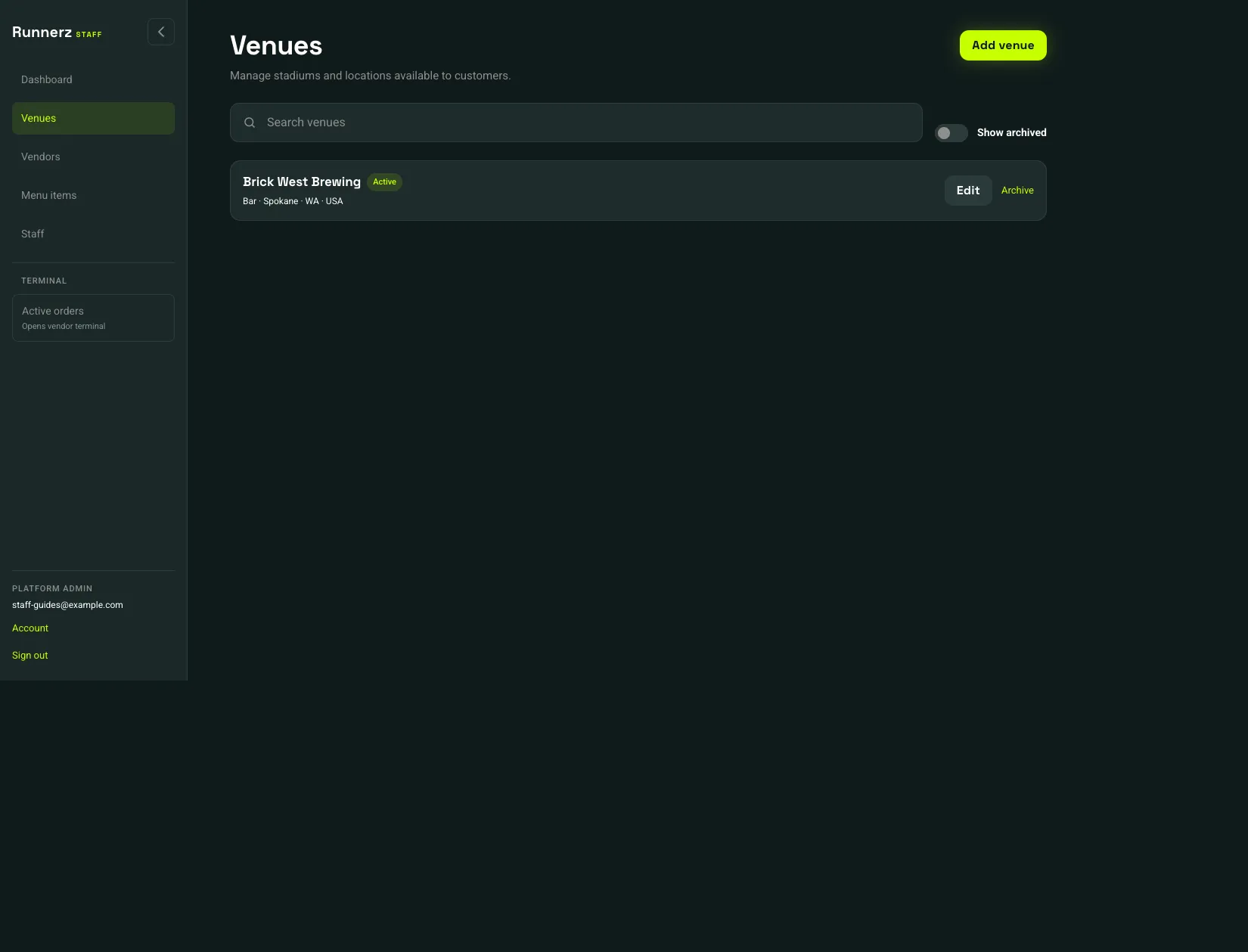 Add venue: 1Edit an existing venue: 2
- Add venue
- Edit an existing venue
On Add a venue, the fields customers and checkout use are:
- Venue name, URL slug, City, State / province, Country
- Venue type: Stadium, Bar, or Theater
- Sales tax %
- Venue hero image (JPG, PNG, or WebP, up to 5 MB)
A platform admin also sets Convenience fee %. That fee is the platform rate for the venue.
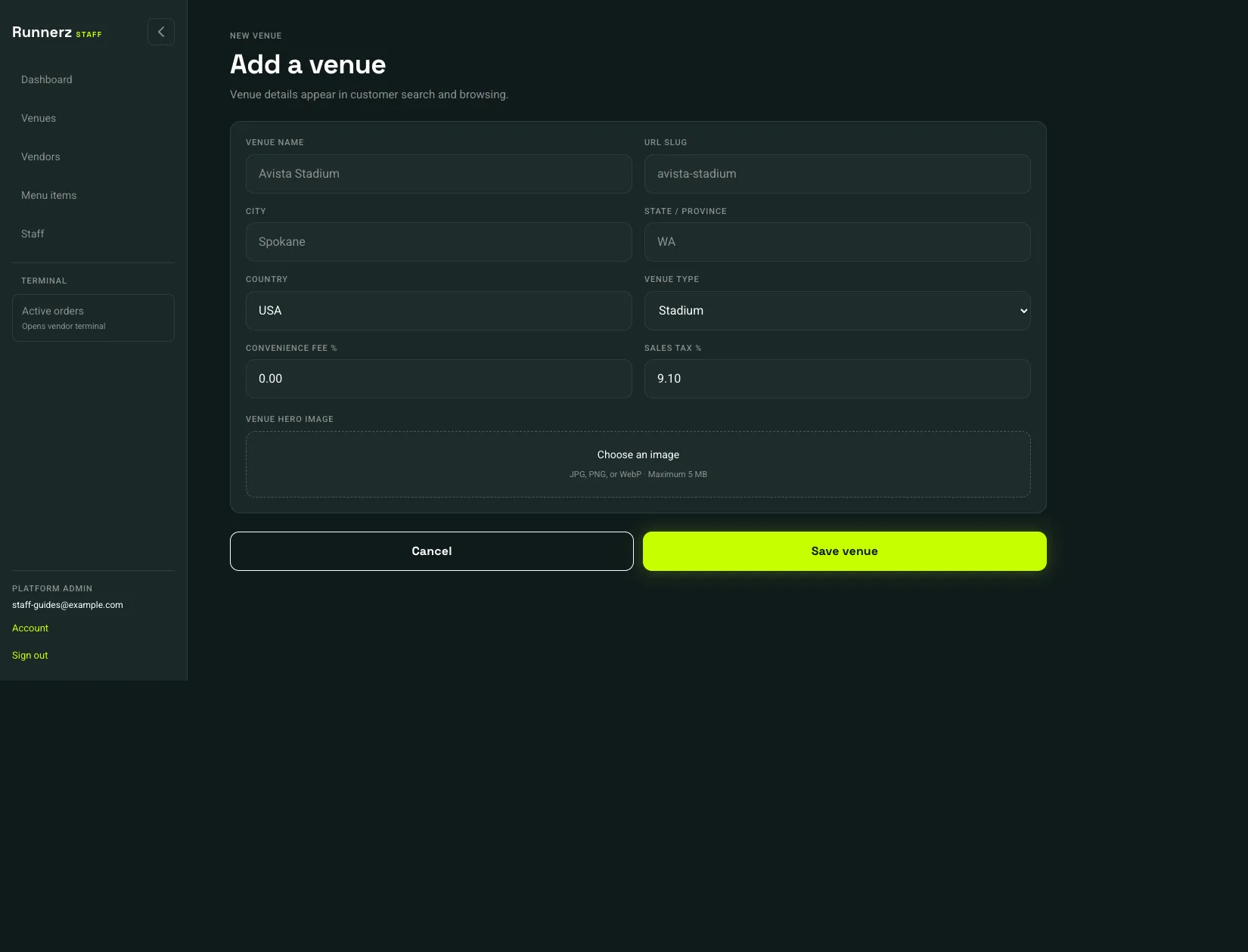 Venue name: 1Sales tax %: 2Save venue: 3
- Venue name
- Sales tax %
- Save venue
Cancel returns to the venues list without saving. After the first save, the editor also shows Payments and Venue runners.
A Bar also has Tabs on this form:
- Let customers start a tab stays off until a closing time and a maximum are set
- Closing time is Pacific time
- Maximum tab is the most that tab can reach
An open tab is charged at closing time if the customer does not close it, and that charge adds 15% for the vendors on the tab. Vendors are paid only after that charge succeeds.