
Live queue
Open the terminal from Active orders on the staff sidebar, or from Live queue on the dashboard. The terminal navigation is Orders, Items, History, and Settings. Admins also see Admin portal. A shared iPad can open this queue with the vendor’s terminal code. See Add a vendor.
The queue has four columns:
- Incoming — paid tickets waiting to start
- Preparing — the kitchen is making them
- Ready — pickup orders waiting for the customer
- Running — Run to Me orders a runner is carrying
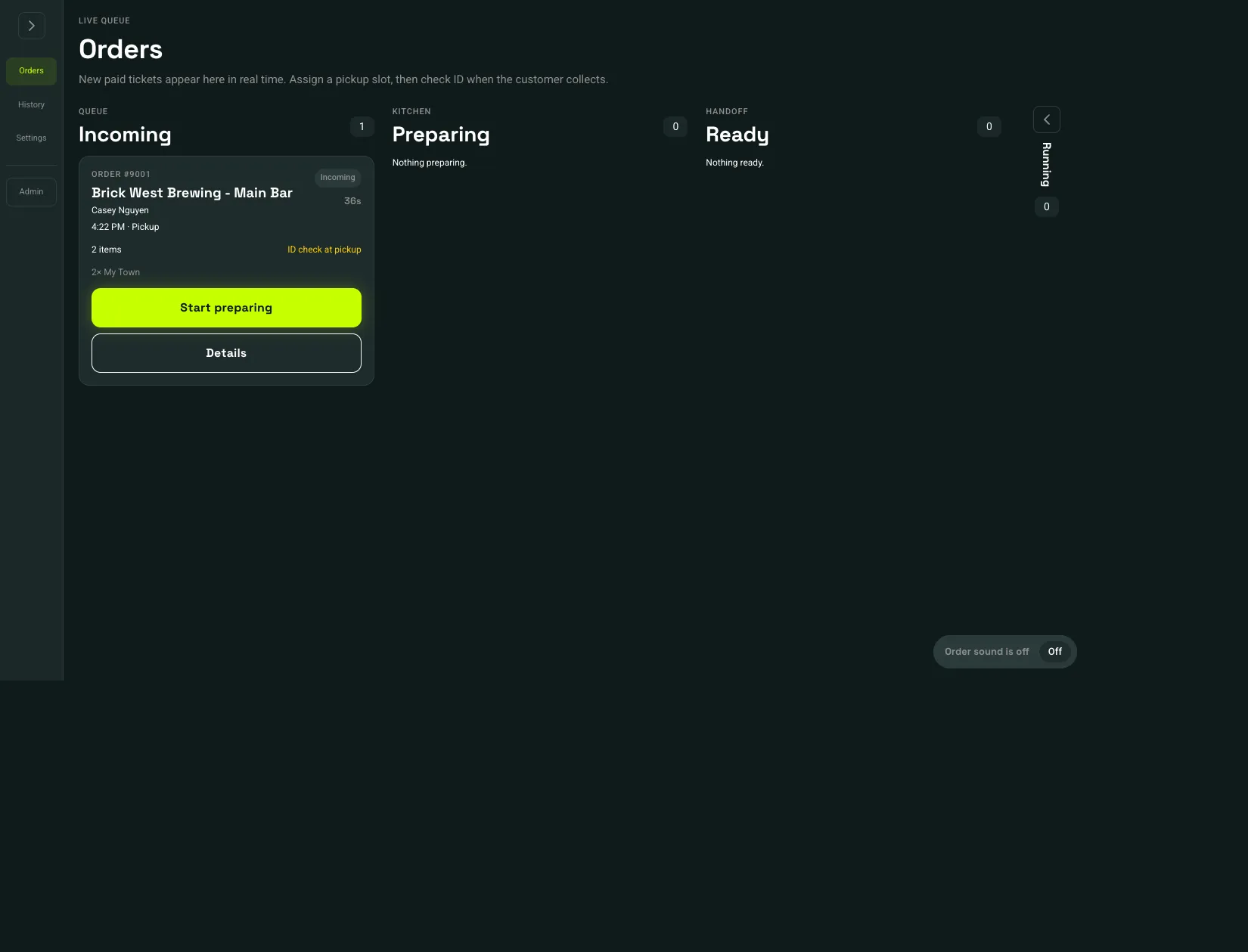 Incoming: 1Start preparing: 2Ready: 3
- Incoming
- Start preparing
- Ready
- On an incoming ticket, choose Start preparing.
- For a pickup, pick a Pickup slot. Slots 5 and 10 are drawn larger because those windows hold bigger orders. Taken numbers stay gray. The customer sees this number when the order is ready.
- Choose Mark ready.
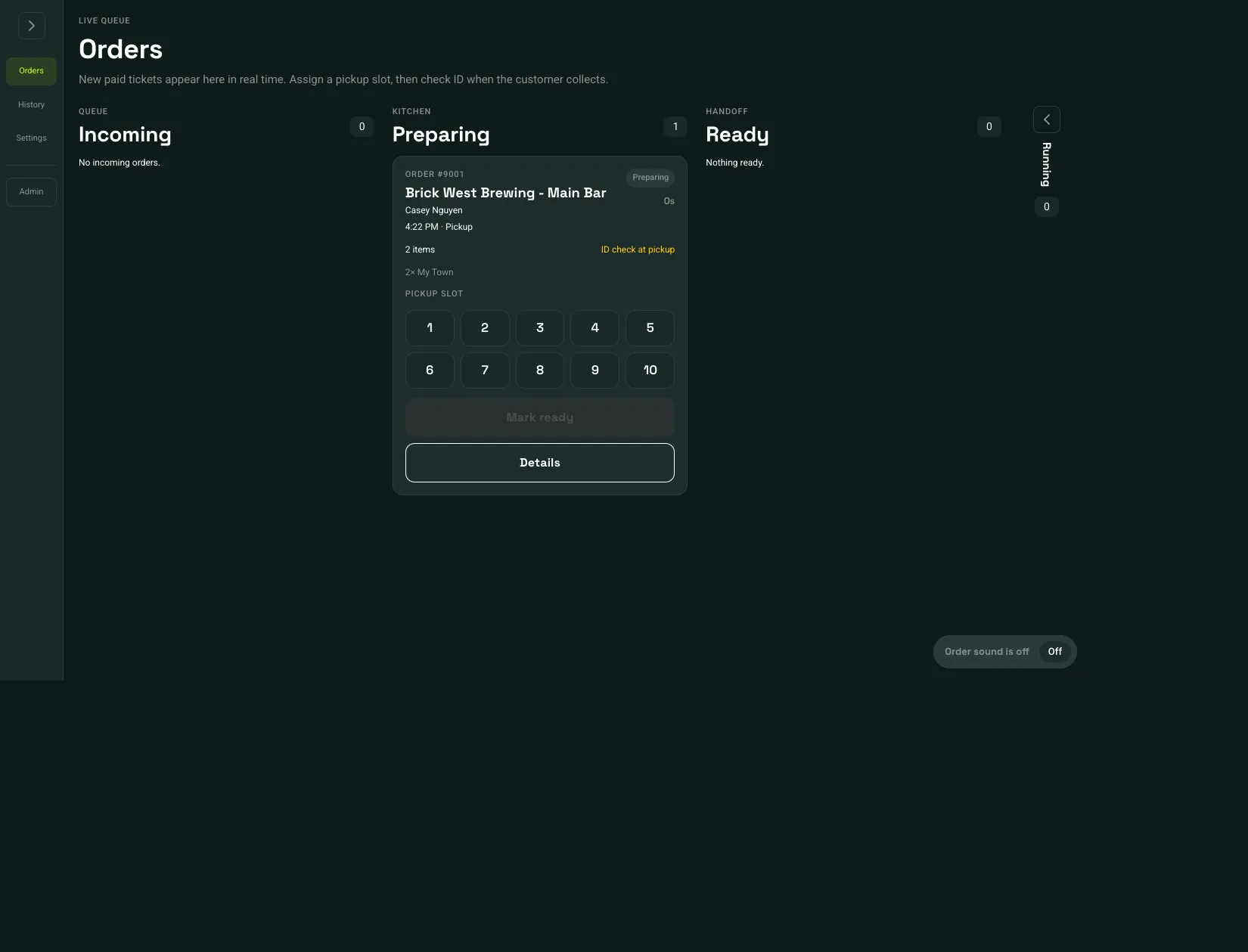 Pickup slot: 1Mark ready: 2
- Pickup slot
- Mark ready
Mark ready stays off until a slot is selected. Details opens the full ticket, including the timeline and payment actions. History lists items sold and completed tickets for a date range. Vendor managers and above can turn on Tips and Run to Me for that range. History does not refund orders.